IQ Panel 5 Guide
This guide covers everything you need to know about the Brinks Home™ IQ Panel 5, including specifications, features, user functions, and troubleshooting.

Navigate to the section you're looking for using the links below:
Specifications
- Screen: 7 inch LCD touchscreen
- Battery: rechargeable lithium ion 3000mAh
- Memory: 16GB NAND flash internal storage
- Z-Wave Plus, Z-Wave Security 2, and Z-Wave SmartStart
- 128 wireless zones
- 4G LTE cellular and dual-path 2.4GHz or 5GHz Wi-Fi
- 13MP Portrait View Front Facing Camera
Features
- Intuitive swipe/scroll/touch-based user interface
- Supports up to 128 devices
- Models support either S-Line encrypted 319.5 MHz, 345 MHz, or 433 MHz
- Bluetooth disarming that lets you leave your phone in your pocket when you arrive home
- 8MP panel camera will capture disarm photos that can be sent to your phone or watch
- The panel turns into a customizable photo frame when not in use
- Built-in glassbreak detection
- Control Z-Wave Plus lights, locks, thermostats, and garage openers
- Dual-path connectivity for improved latency, flexibility, redundancy, updates
User Functions
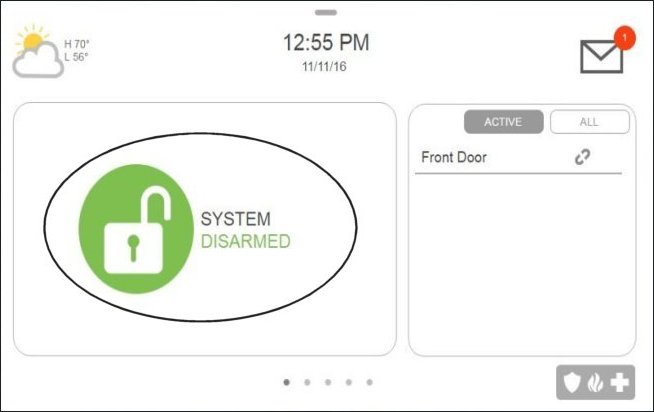
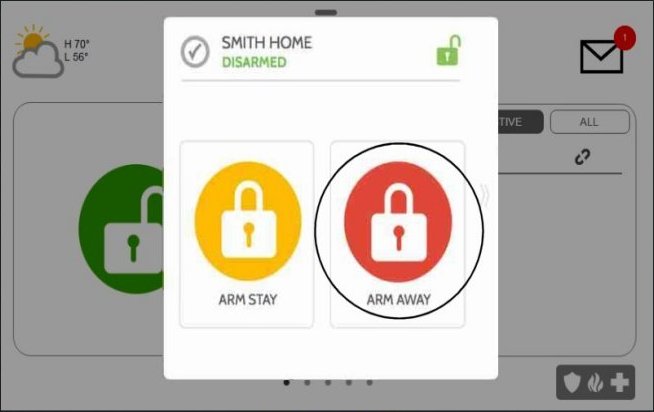
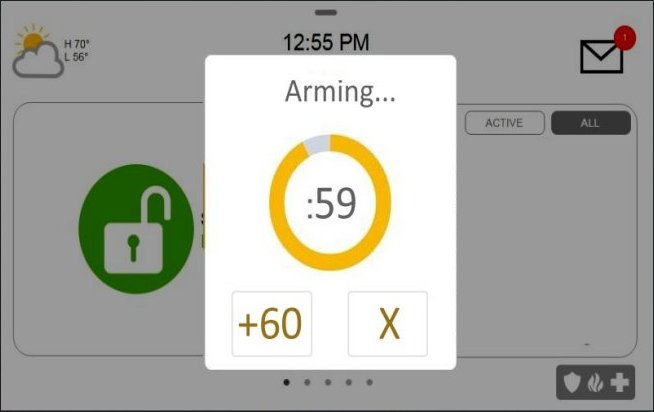
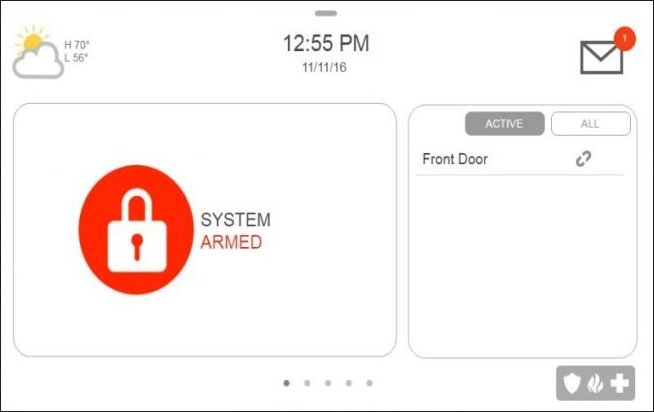
Arm Away
Arm away is used when you plan on arming the system and leaving the home.
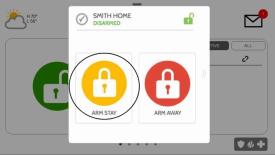
- Press Lock, then press Arm Away.
- The panel displays an exit delay timer while arming.
Arm Stay
Arm stay is used when you plan on arming the system staying home.
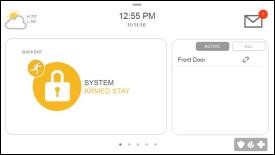
- Press Lock, then press Arm Stay.
- The panel displays Armed Stay.
Disarm System
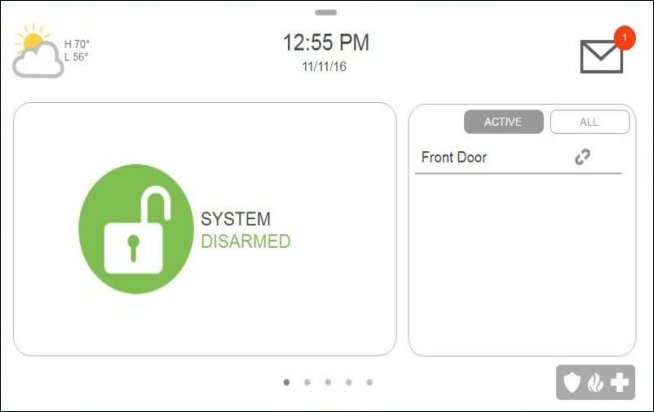
This will disarm your system, and it will silence and reset any active alarm.
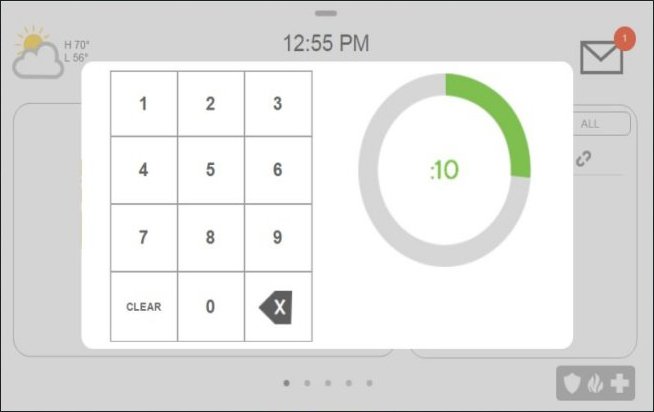
- If entering your property that is armed away, simply enter your user code (disarm code/master code) upon re-entry before the time ends.
- If your system is armed stay, press the lock icon, then enter your user code.
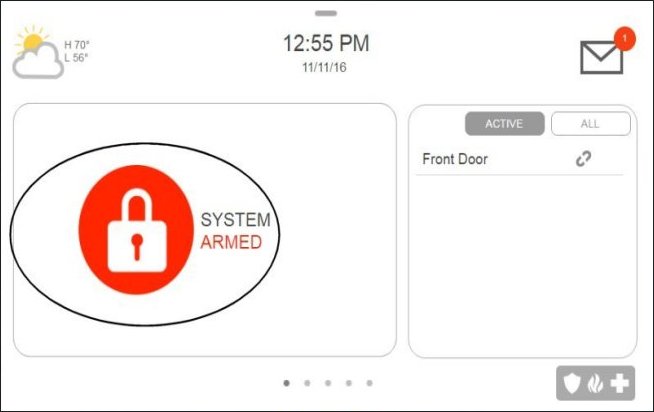
Check Your System Status
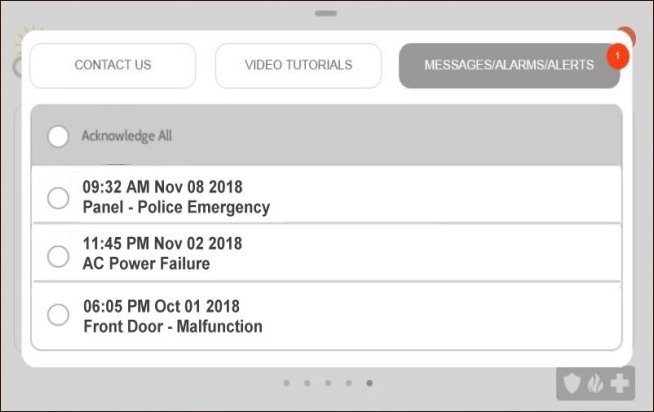
Checking your system's status will display which sensors are currently open or if any of your sensors are experiencing a trouble condition, such as a low battery.
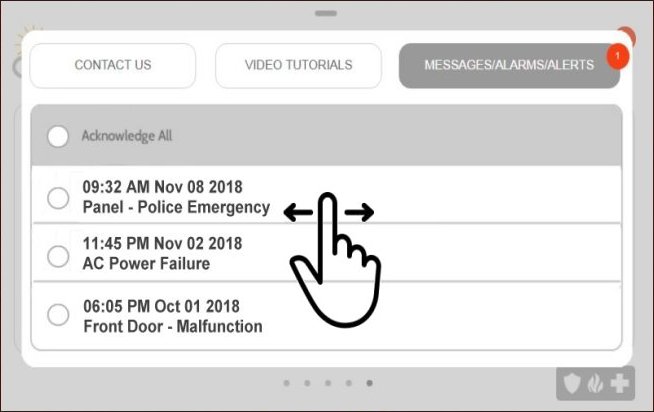
- Press the Brinks Home logo at the top right, then press Messages/Alerts/Alarms.
- View system status, then swipe left or right to exit.


Check Sensor Status
Review a list of sensors connected to your system to ensure all are communicating and trouble free.
- Sensor status displays on the right side of the home screen.

Troubleshooting
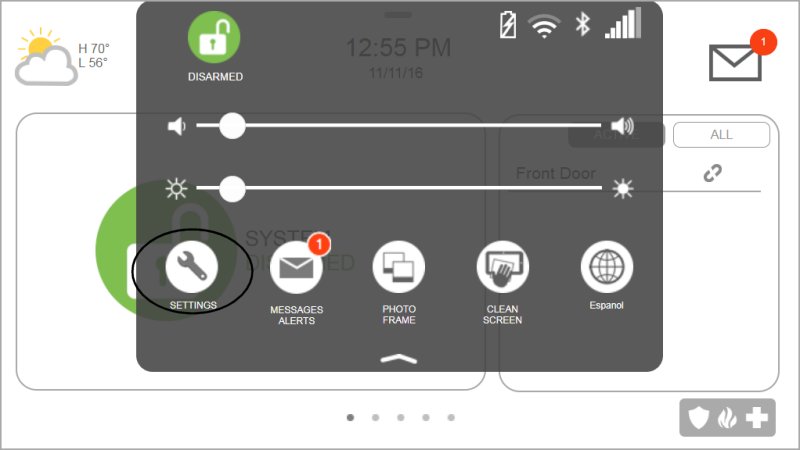
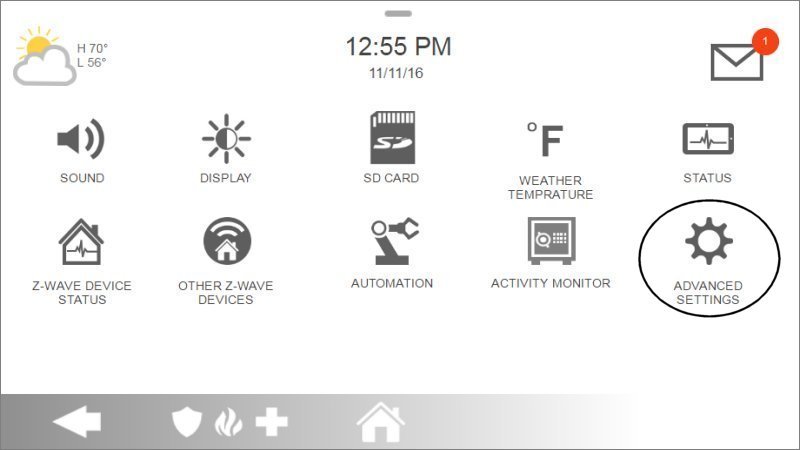
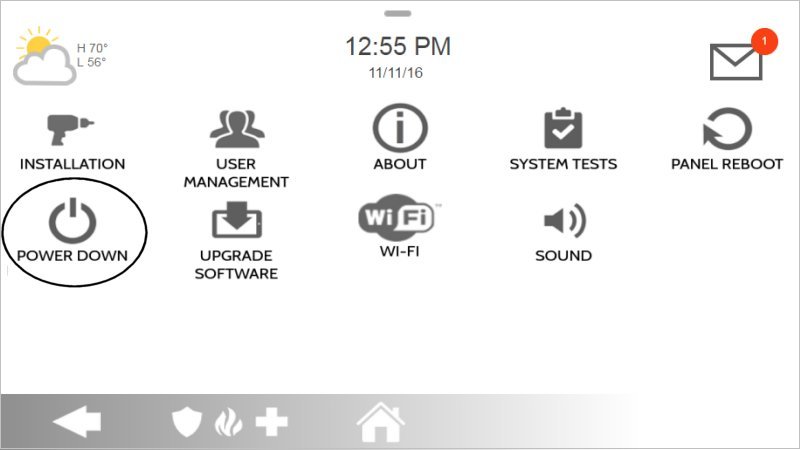
If your system experiences an error, please see below for how to power cycle the panel to correct your issue.You will want to completely power down the system, disconnect the device from the power outlet and remove the battery for at least 2 minutes.
- From the drop-down menu, select Settings.
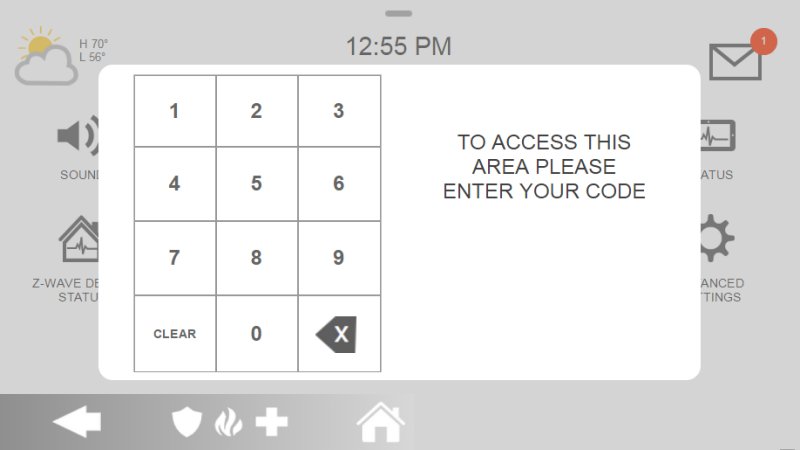
- Select Advanced Settings, then enter the default installer code 1111.
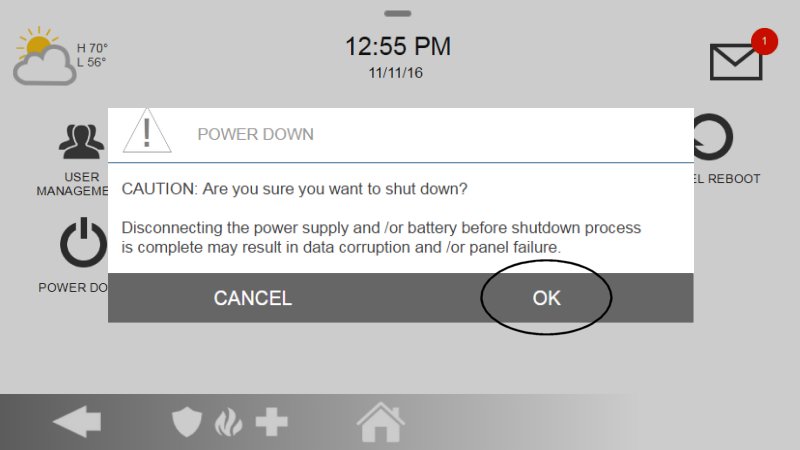
- Select Power Down.
- Wait for the panel LED to turn off.
- Disconnect A/C power from the outlet.
- To access and unplug the battery, use a small Phillips head screwdriver and undo the locking screw from the bottom of the panel. Remove the panel from the backplate.
- With the panel removed and back exposed, unplug the 4-pin battery connector from the board.
- To restore the panel, replace the battery and secure it into place. Align the panel over the backplate, and slide it down into place. Replace the screw removed to secure the panel to the backplate. Plug the transformer into the power outlet. Press the power button on the right side of the panel to power up.
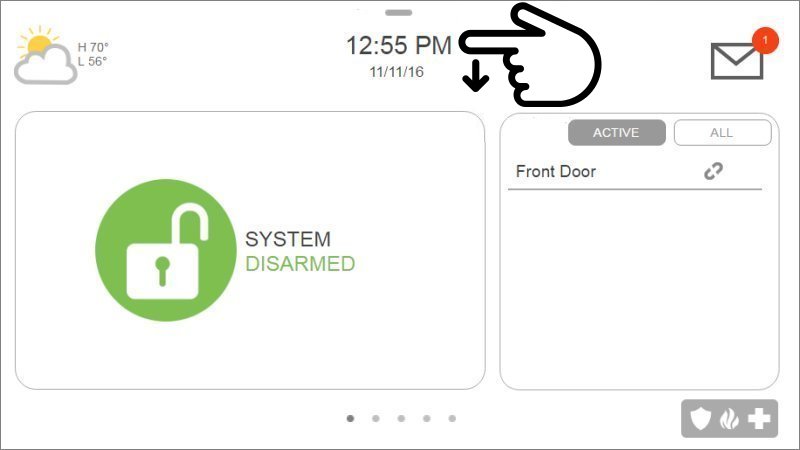


Caution: do not use a screwdriver or anything sharp that could puncture the battery. Do not pull on the battery cable to try and remove the battery.
For additional information relating to your device, click the following link to view the original manufacturer's user guide or installation manual: IQ Panel 5 User Manual
If you need further assistance, text us at 469.513.8685 or chat with us 24/7 for an immediate response.